
Wopisanje
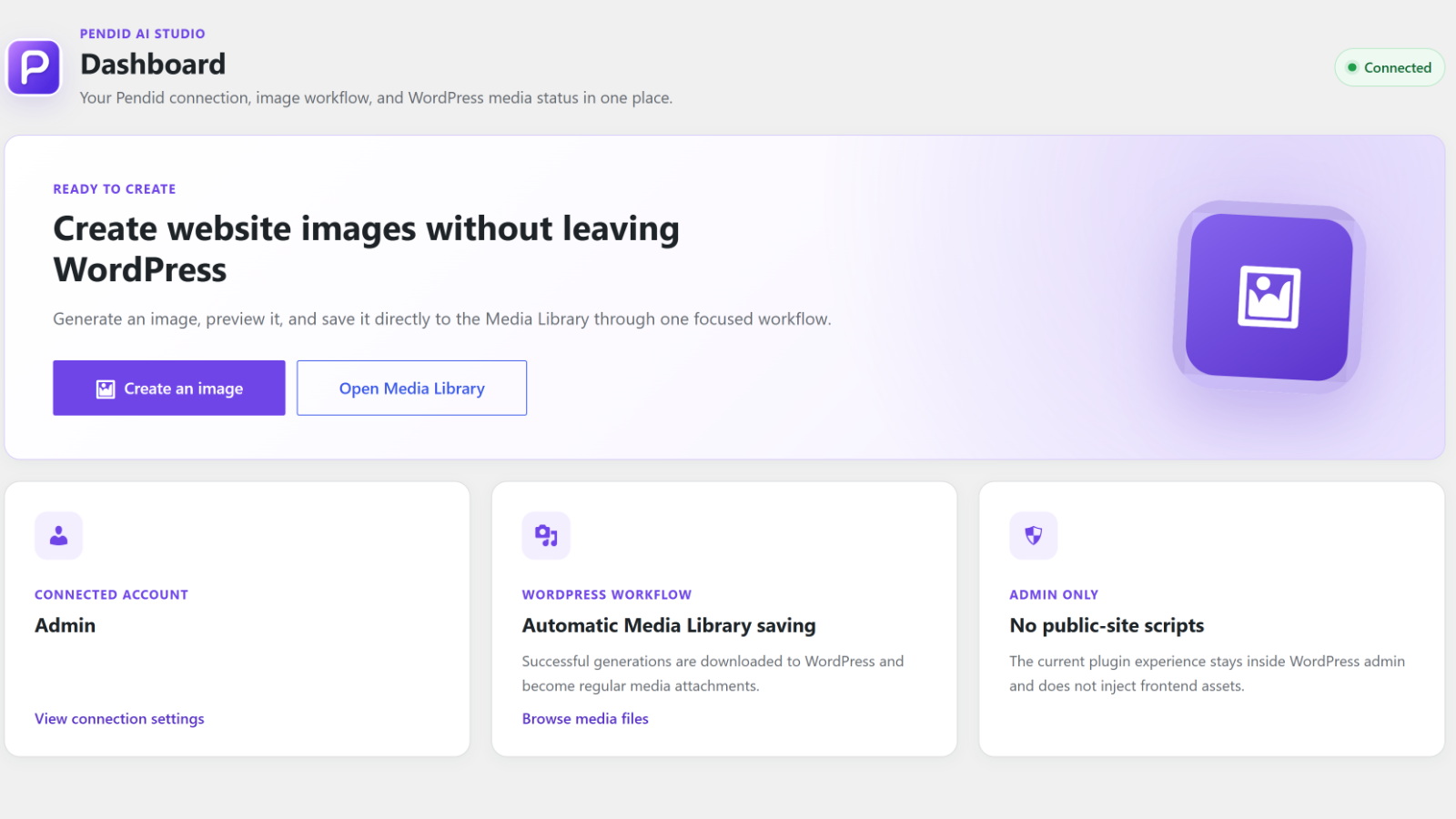
Pendid AI Studio is an admin-only WordPress client for the Pendid AI Studio service. It lets an administrator connect a WordPress site to a Pendid account and create website-ready images from the dashboard.
Generation and editing run on https://studio.pendid.com, and generated files are delivered from https://media.pendid.com. A Pendid account with available image-generation allowance is required. Plans and allowances are managed in the Pendid account. AI-generated results may vary and are not guaranteed.
Connection is completed through Pendid Studio in the browser. You do not copy or paste an access token. WordPress stores an internal plugin token for later requests, and the token is never displayed.
Features
- Guided connection approval with a local disclosure and a second approval screen in Pendid Studio.
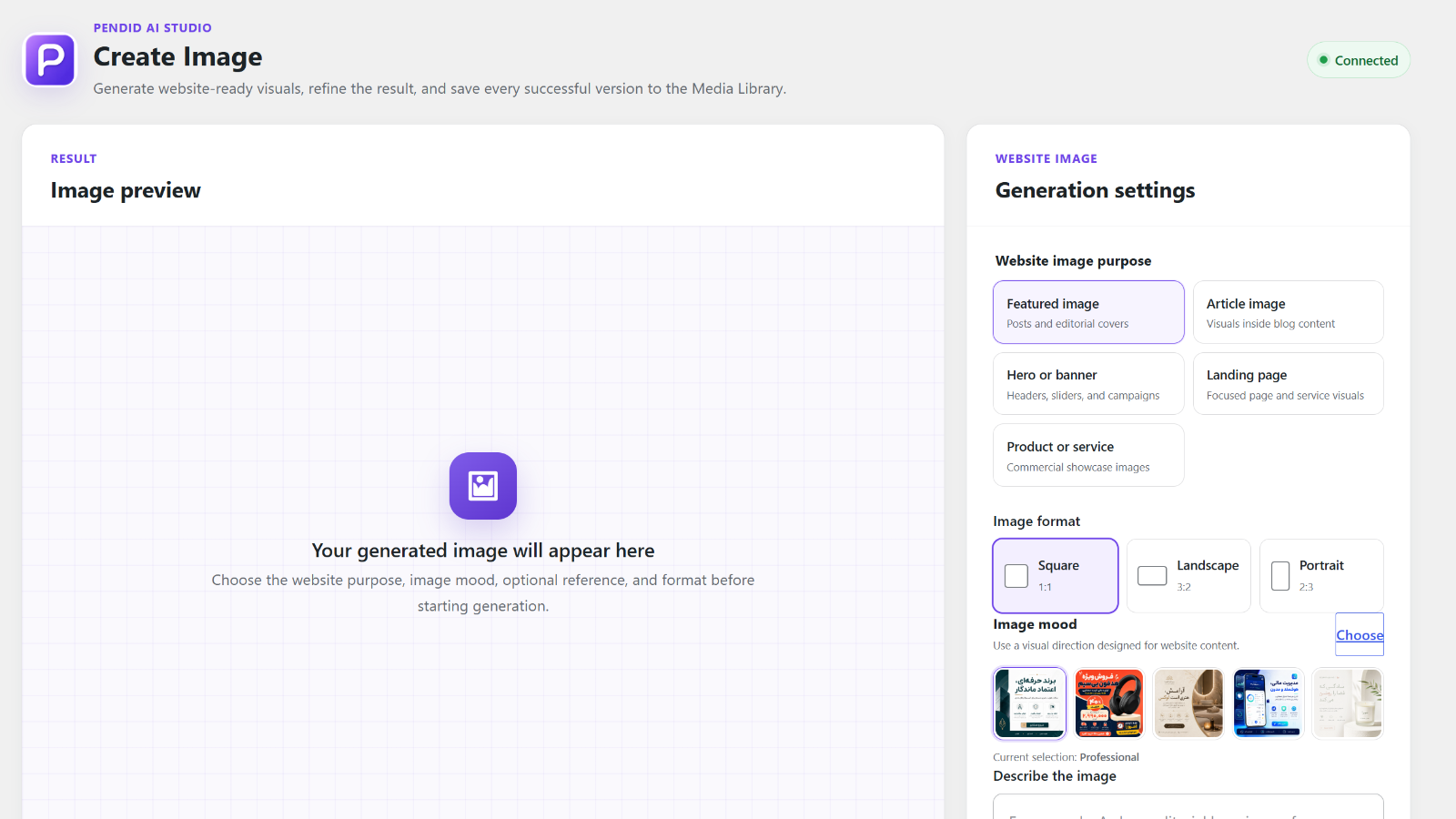
- Website purposes for featured images, article images, banners, landing pages, and products or services.
- Square (1:1), landscape (3:2), and portrait (2:3) formats.
- Seven visual moods with preview images.
- One optional JPG, PNG, or WebP reference image up to 8 MB, subject to the WordPress upload limit.
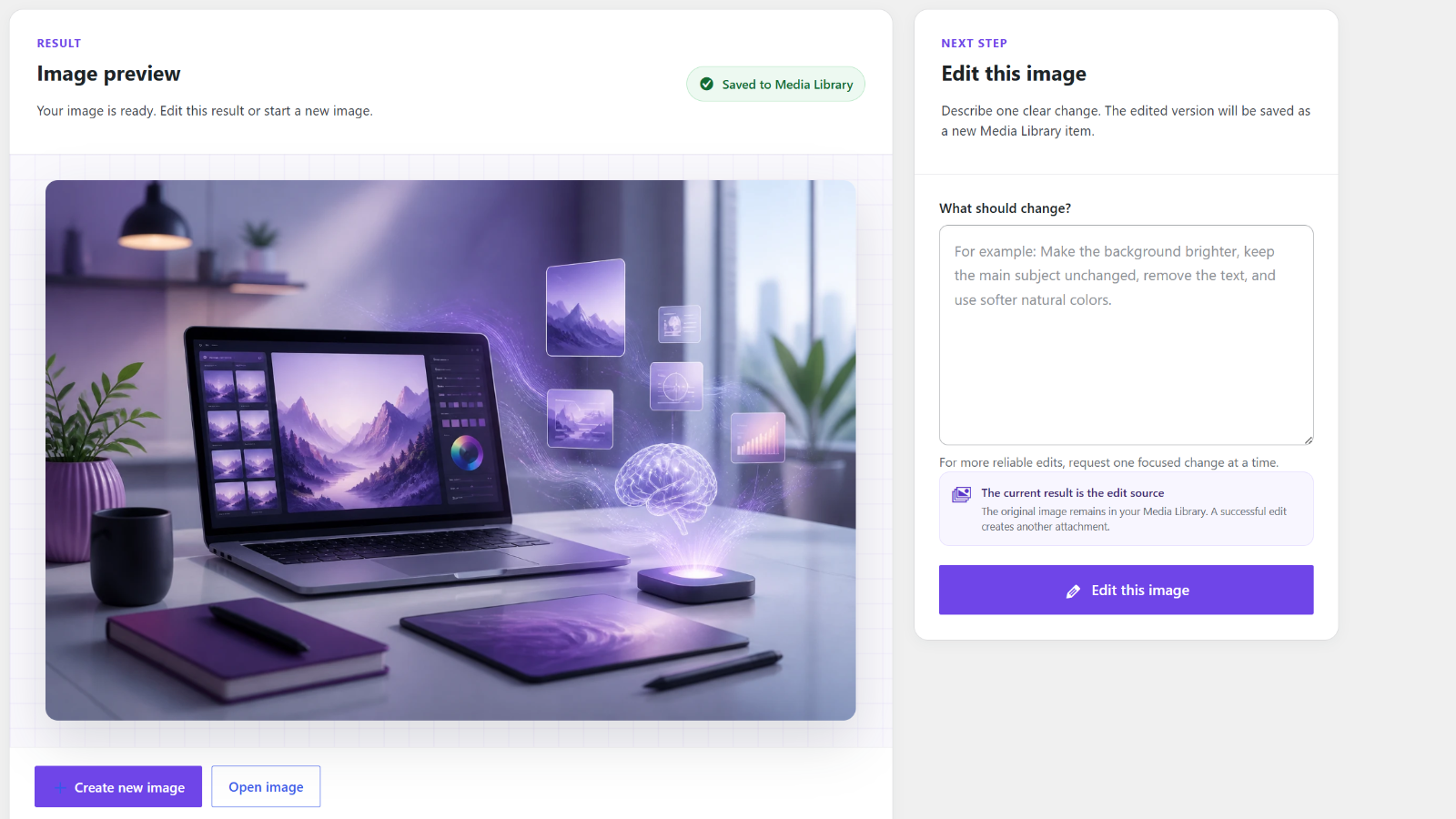
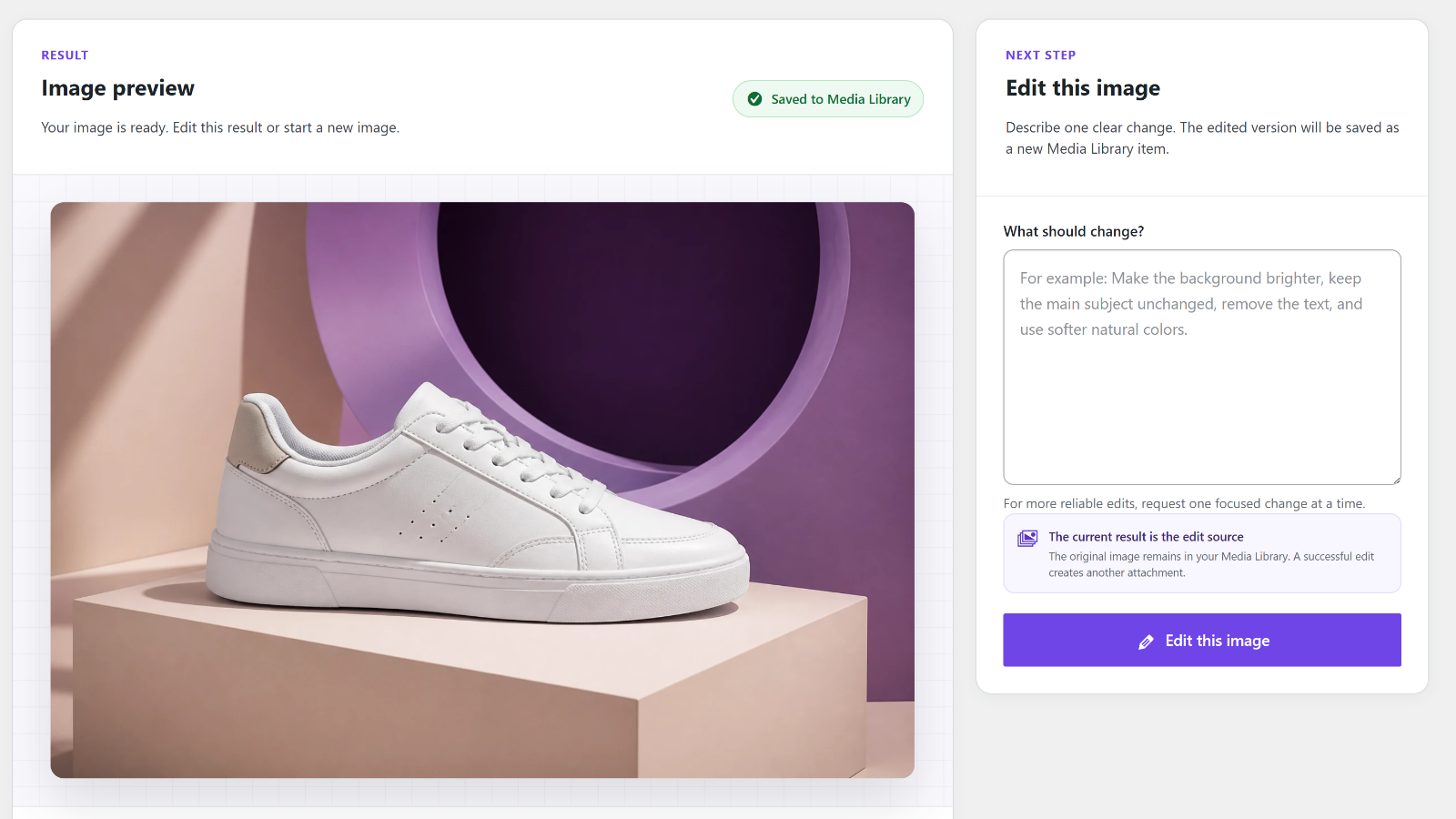
- Editing of the latest result; every successful edit becomes a new Media Library attachment.
- Automatic Media Library saving with a prompt-based filename, title, and alternative text.
- A Pendid-side copy of generated images as a backup.
- Contextual account guidance when a plan or allowance cannot process another request.
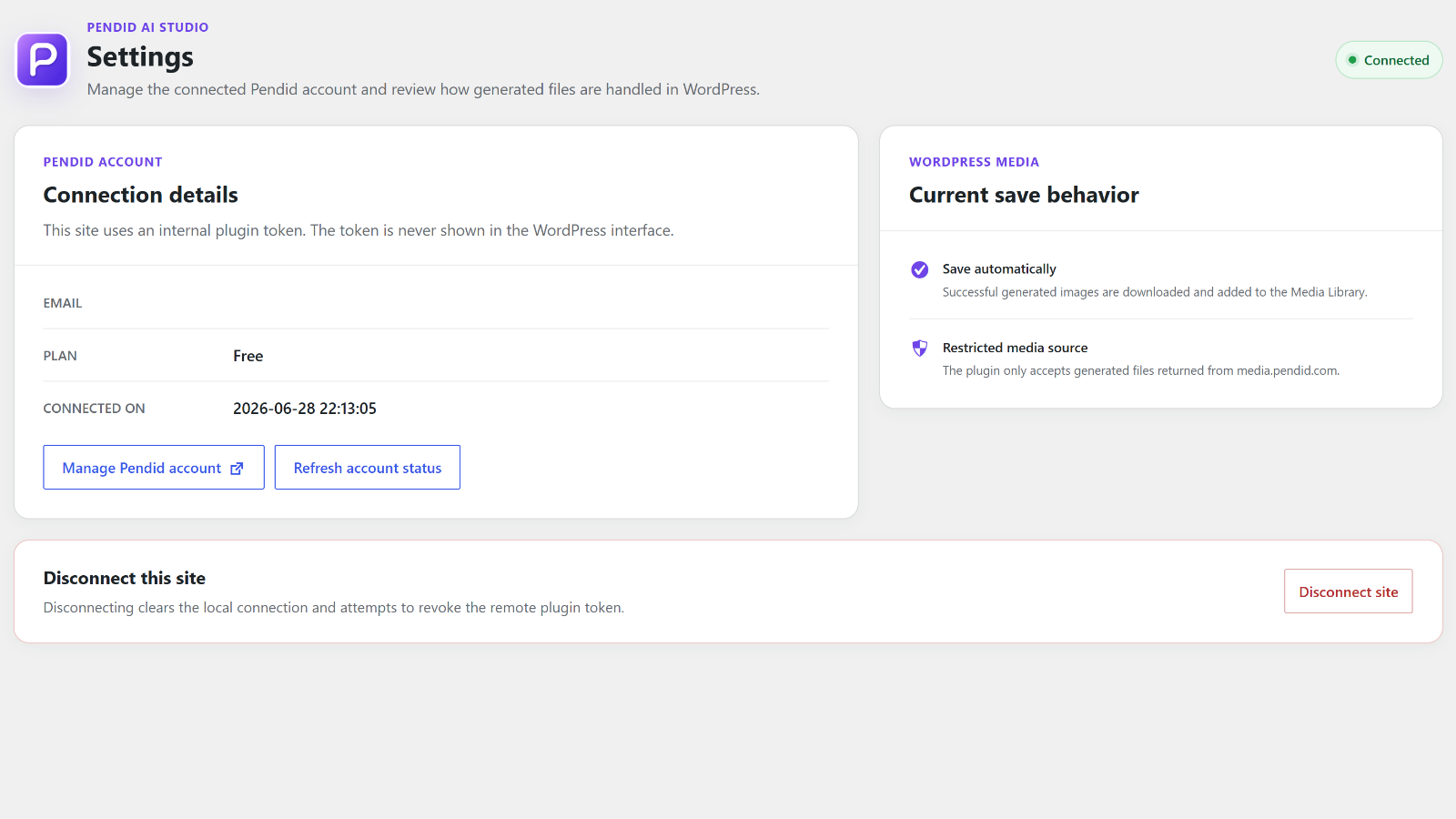
- Account refresh, account-management link, local disconnect, and remote token-revocation attempt.
- English source strings, bundled Persian (fa_IR), and RTL administration support.
- No frontend scripts, styles, markup, analytics, or tracking.
Requirements
- WordPress 6.4 or later.
- PHP 7.4 or later.
- A Pendid account with available image-generation allowance.
- Outbound access to https://studio.pendid.com and https://media.pendid.com.
Getting Started
- Open Pendid in WordPress admin and connect your Pendid account.
- Open Create Image.
- Choose a purpose, format, and visual mood.
- Describe the image and optionally add a reference image.
- Generate the image. A successful result is displayed and saved to the Media Library.
- Edit the result if needed, or start a new image.
- Use Settings to refresh account status, manage the account, or disconnect.
External services
This plugin relies on Pendid services for account connection, authentication, account status, plan and allowance validation, generation, editing, reference-image processing, generated-media delivery, and token revocation. No external request is made until an administrator explicitly connects the site or starts an action.
Pendid Studio — https://studio.pendid.com
Used for connection and approval, authentication, account status, plan and allowance validation, generation and editing, reference-image processing, generated-asset storage, and token revocation.
Data sent may include:
- Site URL, WordPress admin URL, site label, administrator locale, and a one-time connection state.
- Prompt, website purpose, internal format, visual mood, and aspect ratio.
- One optional reference image selected by the administrator.
- Edit instruction, Pendid source-image URL, and source key.
- Internal plugin token in the Authorization header.
Reference images and generated images may be processed or retained according to the Pendid Privacy Policy and Terms.
Pendid Media — https://media.pendid.com
Used to deliver generated files and edit-source images. The plugin only accepts generated output from this host before saving it to the Media Library.
Privacy Policy: https://pendid.com/privacy-policy/
Terms: https://pendid.com/terms/
Privacy
Pendid AI Studio does not collect visitor analytics and does not add public-site tracking.
Data sent to Pendid may include site and admin URLs, site label, administrator locale, one-time state, prompts, purpose and format selections, mood, aspect ratio, an optional reference image, edit instructions, source-image information, and the internal token in the Authorization header.
The plugin does not send WordPress administrator passwords, visitor information, analytics, post contents, existing Media Library files, or public frontend activity.
WordPress stores the internal token, connected account information, connection date, short-lived administrator transients, and successful generated or edited images. The token is stored in a non-autoloaded option and is not displayed.
Fota wobrazowki
Instalacija
- Upload the
pendid-ai-studiofolder to/wp-content/plugins/, or install it from the WordPress Plugins screen. - Activate Pendid AI Studio.
- Open Pendid from the WordPress admin menu.
- Select Review and Connect, read the disclosure, and continue to Pendid Studio.
- Sign in when required, review the site and permissions, and approve the connection.
HSP
-
Do I need a Pendid account?
-
Yes. Generation and editing run through Pendid Studio. Plans and image allowances are managed in the Pendid account.
-
Do I have to paste an access token?
-
No. The browser connection flow creates the internal token automatically. WordPress stores it locally and never displays it.
-
Can I use a reference image?
-
Yes. You can optionally send one JPG, PNG, or WebP image up to 8 MB, subject to the WordPress upload limit. It is not copied into the WordPress Media Library.
-
Are generated images saved to WordPress?
-
Yes. Each successful generation or edit becomes a normal Media Library attachment. A generated copy also remains available through Pendid as a backup.
-
Can I edit an image?
-
Yes. You can edit the latest result with a focused instruction. A successful edit creates a new attachment and leaves the original unchanged.
-
Does the plugin affect the public site?
-
No. It is admin-only and adds no frontend scripts, styles, markup, analytics, or tracking.
-
Are image results guaranteed?
-
No. Results may vary according to the prompt, reference, model, and service availability.
-
What happens when I disconnect?
-
The plugin attempts to revoke the remote token and then clears the local connection. If revocation fails, WordPress is still disconnected locally.
-
What should I do before deleting the plugin?
-
Use Settings > Disconnect site first so the plugin can attempt remote token revocation. Generated Media Library attachments are not removed.
-
Where can I get support?
-
Email info@pendid.com.
Pohódnoćenja
Za tutón tykač pohódnoćenja njejsu.
Sobuskutkowarjo a wuwiwarjo
„Pendid AI Studio“ je softwara wotewrjeneho žórła. Slědowacy ludźo su k tutomu tykačej přinošowali.
Sobuskutkowarjo
Přełožće „Pendid AI Studio“ do swojeje rěče.
Na wuwiću zajimowany?
Přehladajće kod, hladajće do SVN-repozitorija abo abonujće wuwiwanski protokol přez RSS.
Protokol změnow
1.1.0
- Prepared the first public WordPress.org directory release after final approval.
- Synchronized stable-version metadata and screenshot descriptions with the directory assets.
1.0.8
- Added bundled Persian (fa_IR) translation and RTL admin support.
- Added locale-aware Persian or English Pendid Studio approval.
- Kept official WordPress language packs above the bundled fallback.
- Added seven visual mood preview images.
1.0.7
- Fixed admin stylesheet caching.
- Improved WordPress and Pendid storage notes.
- Improved reference-image chooser focus styling.
1.0.6
- Added website purposes, visual moods, reference images, result editing, and Create new image.
- Kept plan and allowance management in Pendid.
1.0.5
- Added loading states, duplicate-submit prevention, preserved drafts, account guidance, and prompt-based media metadata.
1.0.4
- Added one-time callback state validation, cancelled/expired states, and callback-origin validation.
1.0.3
- Added a native admin-menu icon, accessible connection disclosure, and clearer external-service information.
1.0.2
- Added separate Dashboard, Create Image, and Settings pages and Pendid page branding.
1.0.1
- Improved onboarding, image-format choices, result actions, and responsive styling.
1.0.0
- First public release with account connection, generation, Media Library saving, account refresh, and token revocation.